Monitoring the DevWorkspace Operator
You can configure the OpenShift in-cluster monitoring stack to scrape metrics exposed by the DevWorkspace Operator.
Collecting DevWorkspace Operator metrics
To use the in-cluster Prometheus instance to collect, store, and query metrics about the DevWorkspace Operator:
-
Your organization’s instance of Che is installed and running in Red Hat OpenShift.
-
An active
kubectlsession with administrative permissions to the destination Kubernetes cluster. See Overview of kubectl. -
The
devworkspace-controller-metricsService is exposing metrics on port8443. This is preconfigured by default.
The che-operator automatically creates the following resources when metrics are enabled:
-
A
ServiceMonitorresource nameddevworkspacefor detecting the DevWorkspace Operator metrics Service -
A
RoleandRoleBindinggranting theprometheus-k8sservice account permission to scrape metrics endpoints in theopenshift-operatorsnamespace
To complete the monitoring configuration:
-
Allow the in-cluster Prometheus instance to detect the ServiceMonitor in the Che namespace. The default Che namespace is
eclipse-che.$ kubectl label namespace eclipse-che openshift.io/cluster-monitoring=true
-
For a fresh installation of Che, generate metrics by creating a Che workspace from the Dashboard.
-
In the Administrator view of the OpenShift web console, go to Observe → Metrics.
-
Run a PromQL query to confirm that the metrics are available. For example, enter
devworkspace_started_totaland click Run queries.For more metrics, see DevWorkspace-specific metrics.
|
To troubleshoot missing metrics, view the Prometheus container logs for possible RBAC-related errors:
|
DevWorkspace-specific metrics
The following tables describe the DevWorkspace-specific metrics exposed by the devworkspace-controller-metrics Service.
| Name | Type | Description | Labels |
|---|---|---|---|
|
Counter |
Number of DevWorkspace starting events. |
|
|
Counter |
Number of DevWorkspaces successfully entering the |
|
|
Counter |
Number of failed DevWorkspaces. |
|
|
Histogram |
Total time taken to start a DevWorkspace, in seconds. |
|
| Name | Description | Values |
|---|---|---|
|
The |
|
|
The |
|
|
The workspace startup failure reason. |
|
| Name | Description |
|---|---|
|
Startup failure due to an invalid devfile used to create a DevWorkspace. |
|
Startup failure due to the following errors: |
|
Unknown failure reason. |
Viewing DevWorkspace Operator metrics from an OpenShift web console dashboard
After configuring the in-cluster Prometheus instance to collect DevWorkspace Operator metrics, you can view the metrics on a custom dashboard in the Administrator perspective of the OpenShift web console.
-
Your organization’s instance of Che is installed and running in Red Hat OpenShift.
-
An active
ocsession with administrative permissions to the destination OpenShift cluster. See Getting started with the CLI. -
The in-cluster Prometheus instance is collecting metrics. See Collecting DevWorkspace Operator metrics.
-
Create a ConfigMap for the dashboard definition in the
openshift-config-managednamespace and apply the necessary label.-
$ oc create configmap grafana-dashboard-dwo \ --from-literal=dwo-dashboard.json="$(curl https://raw.githubusercontent.com/devfile/devworkspace-operator/main/docs/grafana/openshift-console-dashboard.json)" \ -n openshift-config-managed -
$ oc label configmap grafana-dashboard-dwo console.openshift.io/dashboard=true -n openshift-config-managedThe dashboard definition is based on Grafana 6.x dashboards. Not all Grafana 6.x dashboard features are supported in the OpenShift web console.
-
-
In the Administrator view of the OpenShift web console, go to Observe → Dashboards.
-
Go to Dashboard → Dev Workspace Operator and verify that the dashboard panels contain data.
Dashboard for the DevWorkspace Operator
The OpenShift web console custom dashboard is based on Grafana 6.x and displays the following metrics from the DevWorkspace Operator.
| Not all features for Grafana 6.x dashboards are supported as an OpenShift web console dashboard. |
DevWorkspace metrics
The DevWorkspace-specific metrics are displayed in the DevWorkspace Metrics panel.
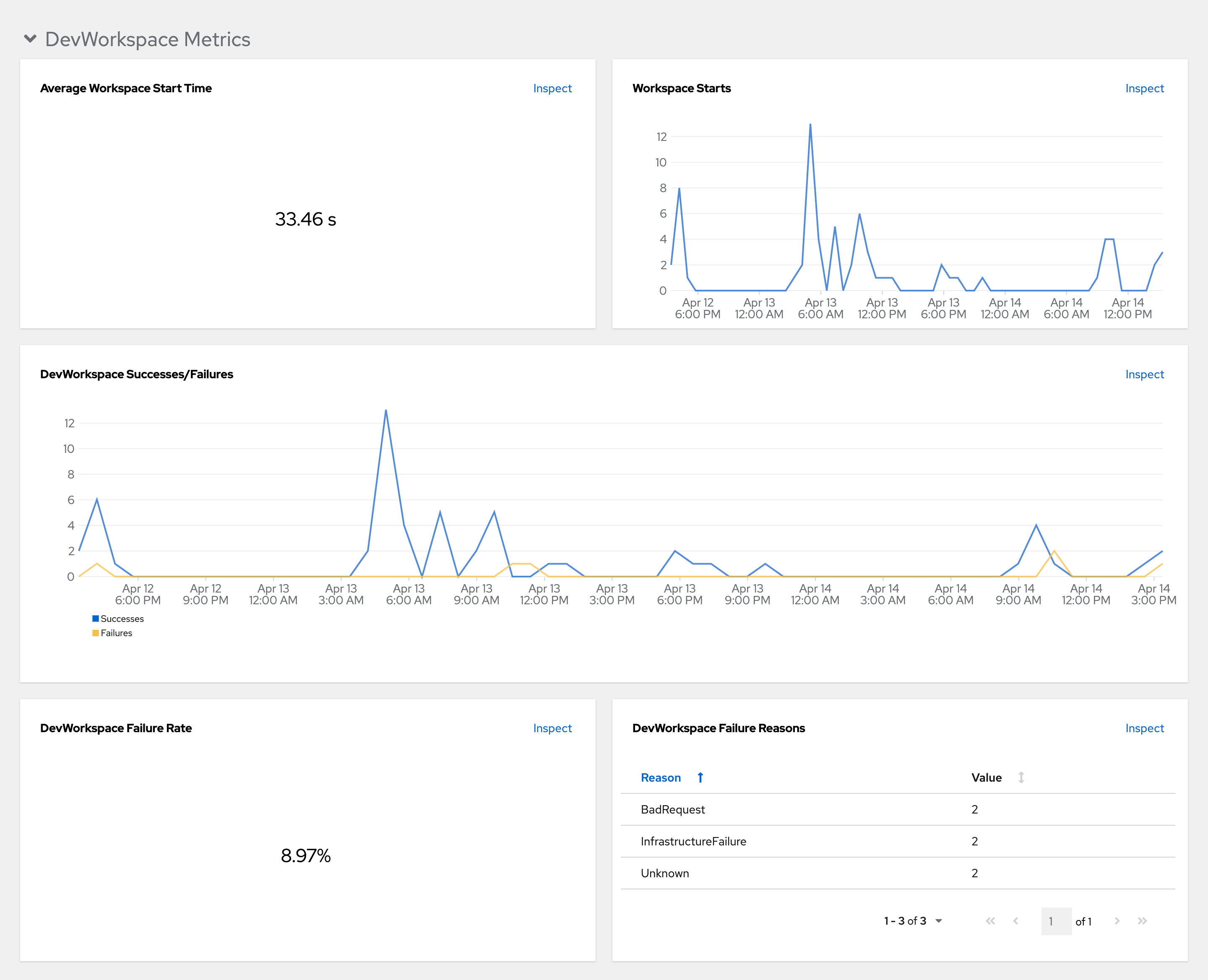
- Average workspace start time
-
The average workspace startup duration.
- Workspace starts
-
The number of successful and failed workspace startups.
- DevWorkspace successes and failures
-
A comparison between successful and failed DevWorkspace startups.
- DevWorkspace failure rate
-
The ratio between the number of failed workspace startups and the number of total workspace startups.
- DevWorkspace startup failure reasons
-
A pie chart that displays the distribution of workspace startup failures:
-
BadRequest -
InfrastructureFailure -
Unknown
-
Operator metrics
The Operator-specific metrics are displayed in the Operator Metrics panel.
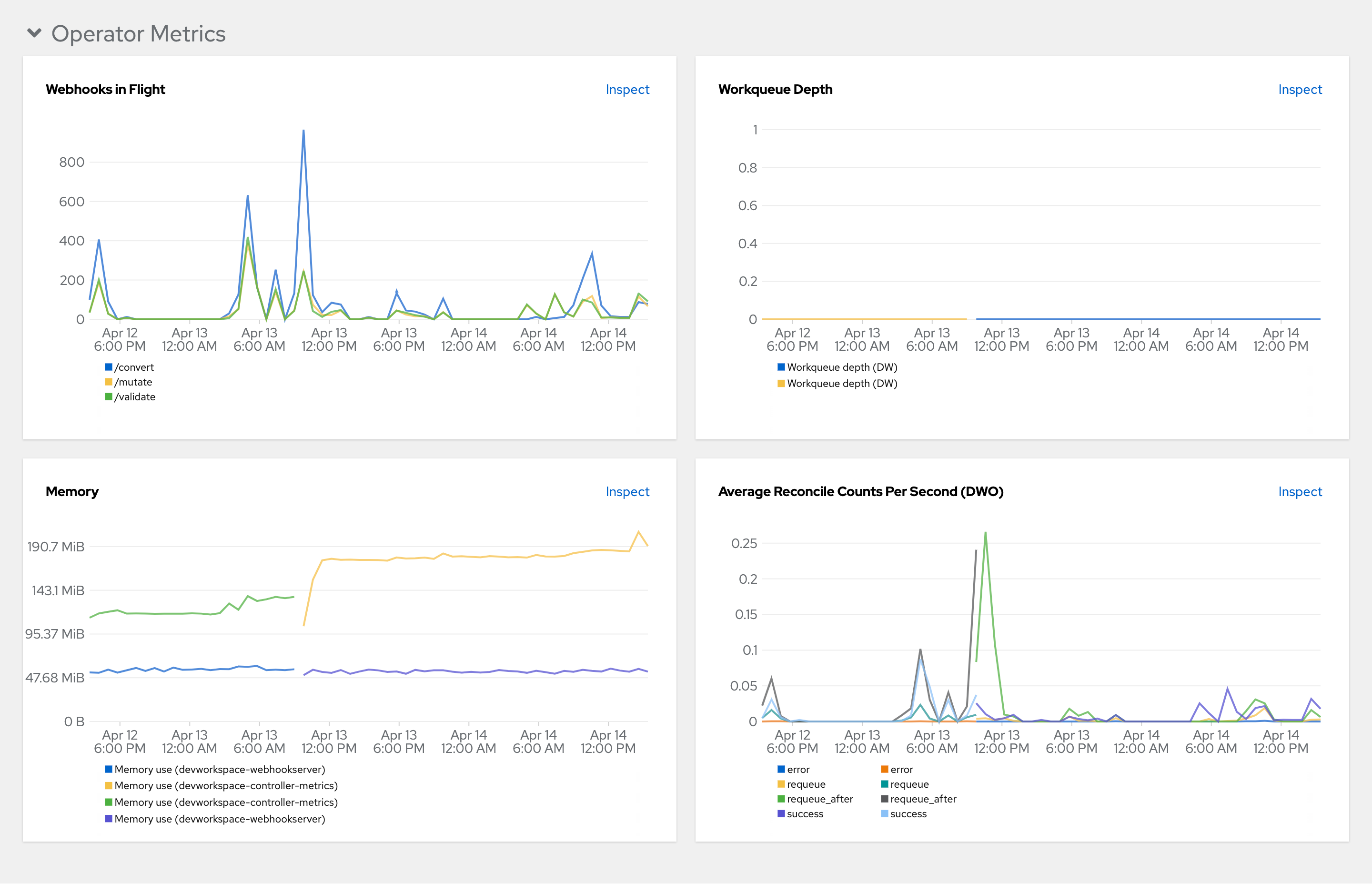
- Webhooks in flight
-
A comparison between the number of different webhook requests.
- Work queue depth
-
The number of reconcile requests that are in the work queue.
- Memory
-
Memory usage for the DevWorkspace controller and the DevWorkspace webhook server.
- Average reconcile counts per second (DWO)
-
The average per-second number of reconcile counts for the DevWorkspace controller.